When Wired Internet Is The Better Fix
WiFi is convenient, but wired internet is better when a device stays in one place and needs a steadier connection. Use wired for smart TVs, desktop computers, game systems, camera hubs, work computers, and streaming devices that keep dropping on WiFi.
Wired Internet Uses Your Same Internet Service.
You are not buying a new internet plan. You are giving one device a direct path to the router, switch, or wall connection so it does not have to fight crowded WiFi.
Use Wired Internet When Stability Matters
A wired connection is the right move when the device can stay plugged in and the connection needs to be steady.
Smart TV Or Streaming
Use wired when the TV buffers, apps freeze, or streaming drops even though the internet plan is fast enough.
Work Computer
Use wired for Zoom calls, uploads, downloads, remote work, and anything that cannot afford random WiFi drops.
Gaming System
Use wired when lag, disconnects, or unstable WiFi keeps causing problems during games or updates.
Security Camera Hub
Use wired when a camera system, DVR, NVR, or hub needs a more dependable connection.
Desktop Computer
Use wired when the computer stays near a desk and does not need to move around the house.
Crowded WiFi
Use wired to take heavy devices off WiFi so phones, tablets, and smart devices have less traffic to fight.
Do Not Use Wired For Everything
Wired internet is strongest for devices that stay in one spot. It is not the best fit for phones, tablets, or devices you move around all day.
- Use wired for stationary devices that need a steady connection.
- Use WiFi for phones, tablets, and devices that move around the house.
- Use a router fix when the whole house keeps dropping.
- Use a booster fix when one far room is weak but the router works nearby.
Wired Parts List: What You Need And When
Start with the Ethernet cable. Add other parts only when your setup proves you need them.
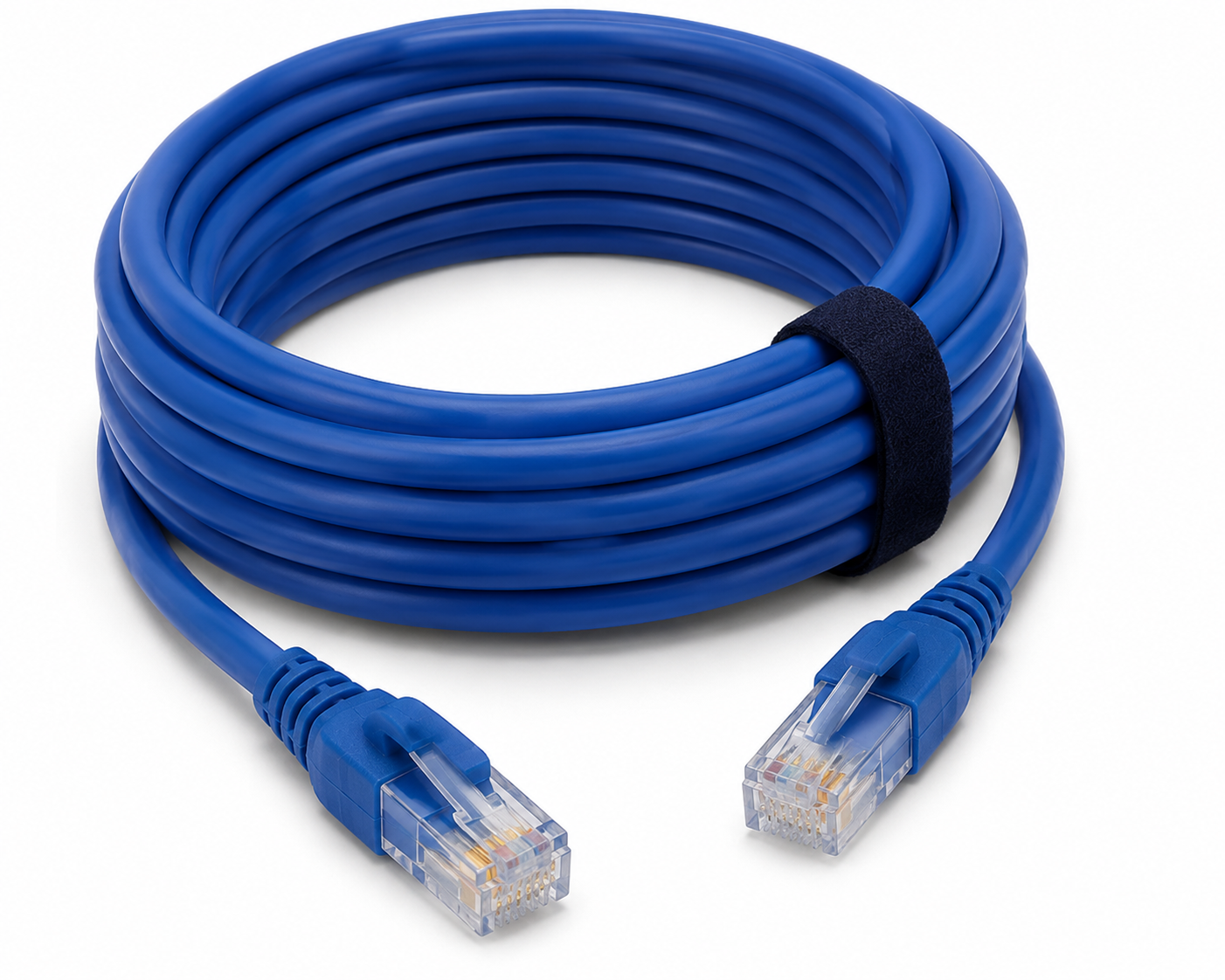
Ethernet Cable
Needed when: you are connecting one device directly to a router, switch, wall port, or powerline unit. This is the first wired part for most setups.
Check Ethernet Cable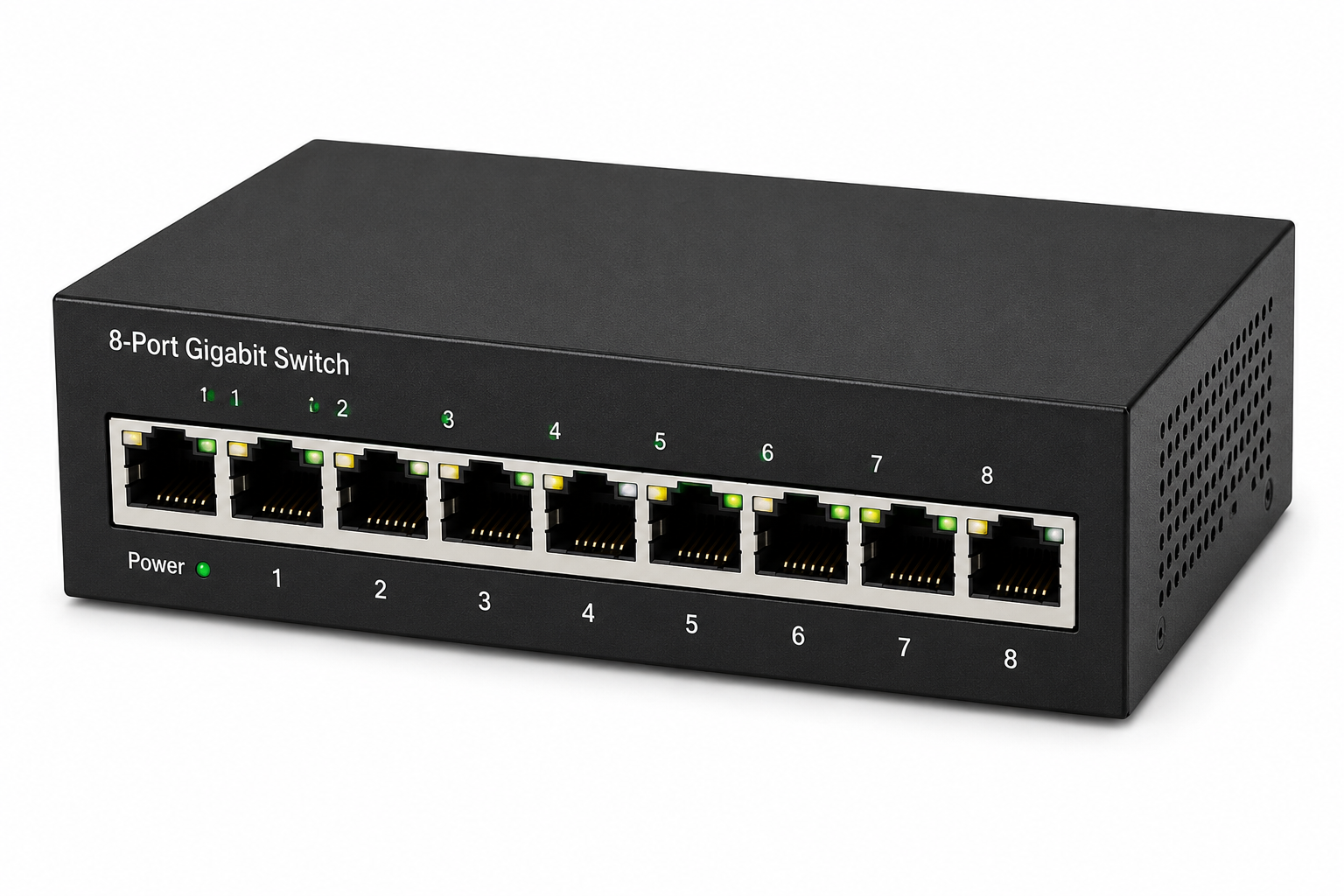
Network Switch
Needed when: you have more wired devices than open ports on the router. A switch gives you extra Ethernet ports in one area.
Check Network Switch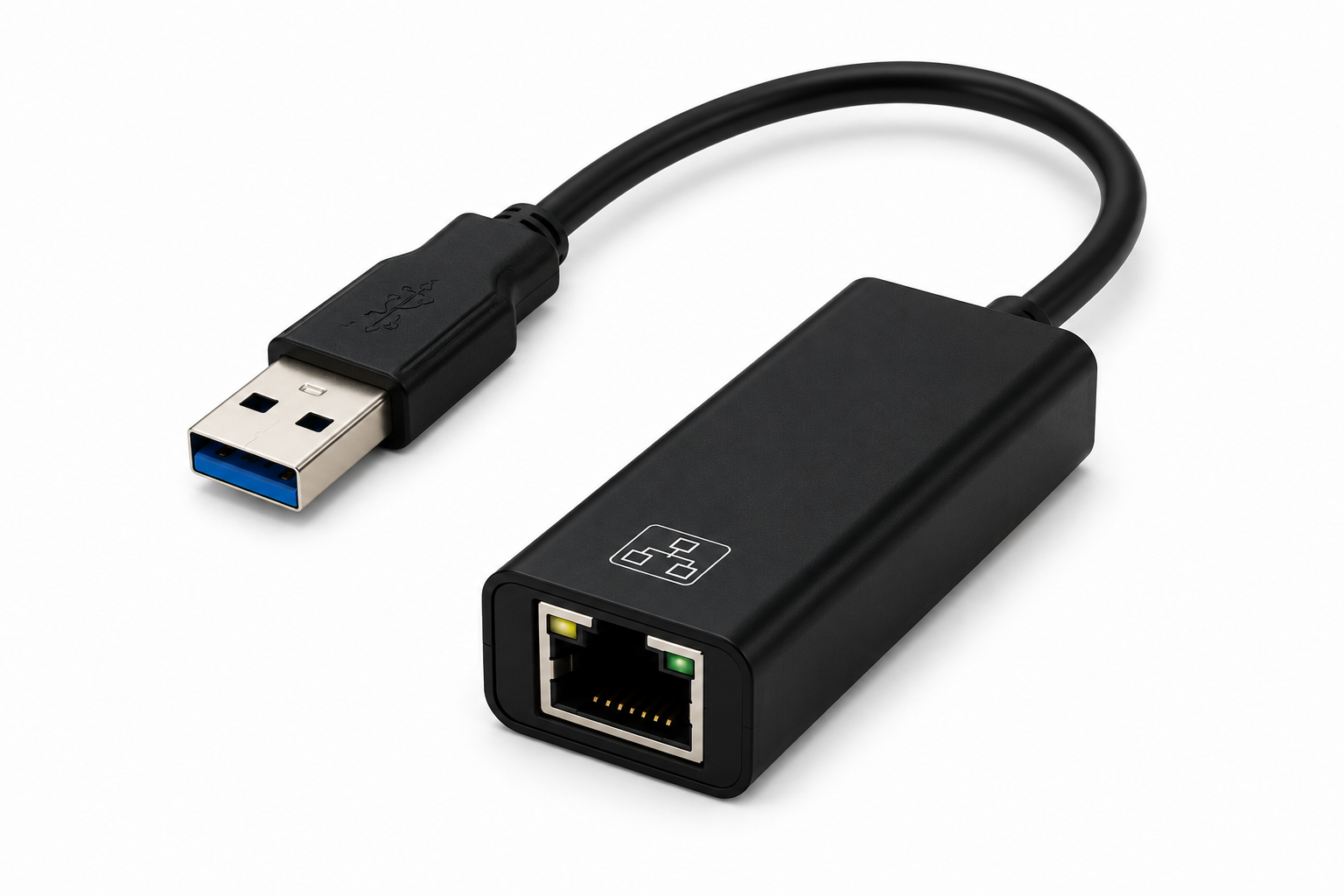
USB Ethernet Adapter
Needed when: a laptop, desktop, or compatible household device does not have an Ethernet port. The adapter adds an RJ45 wired internet port so a regular Ethernet cable can plug into the device.
Check Ethernet Adapter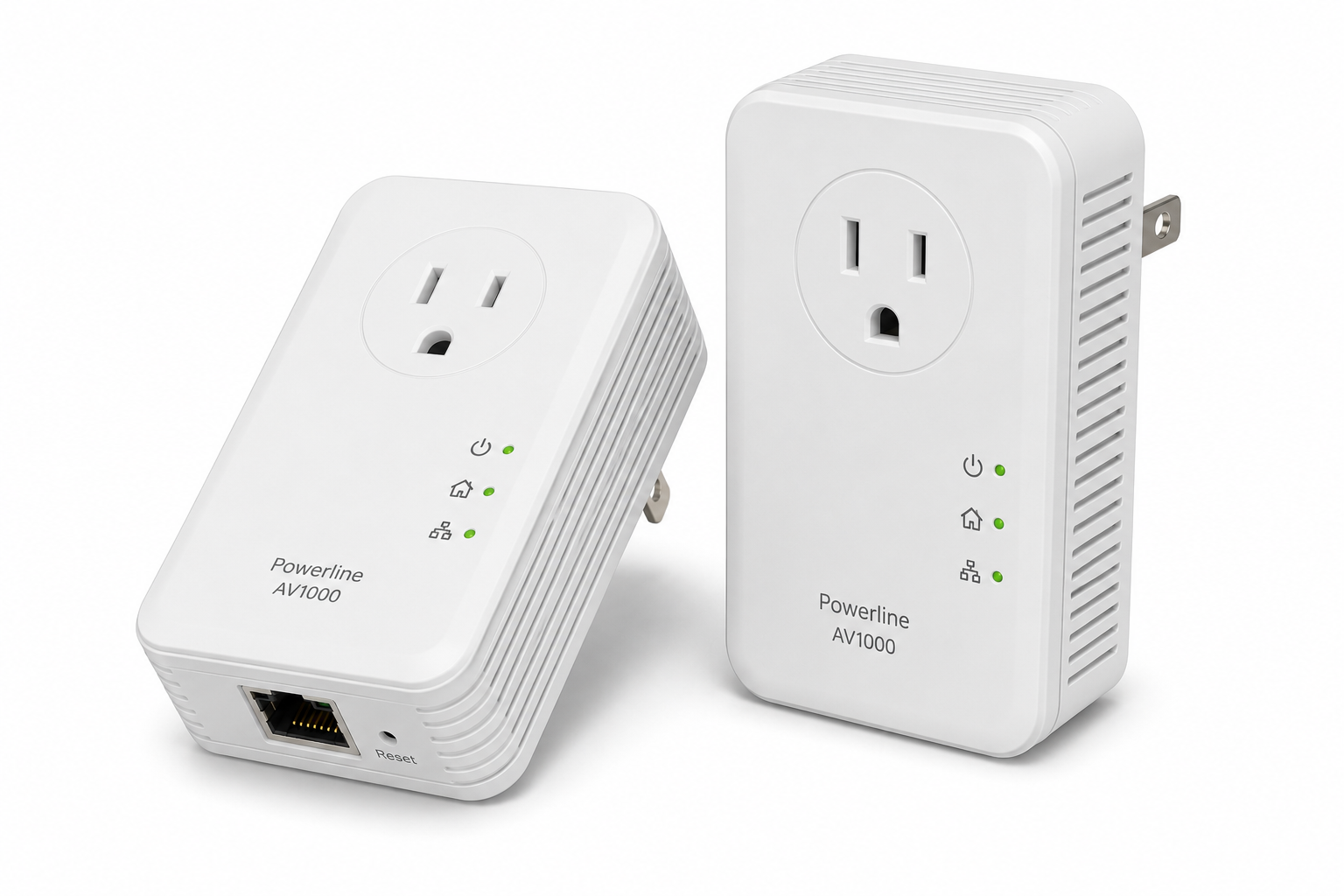
Powerline Ethernet
Needed when: the device is too far away for a clean cable run. Powerline uses your home electrical wiring to carry the network signal.
Check Powerline Ethernet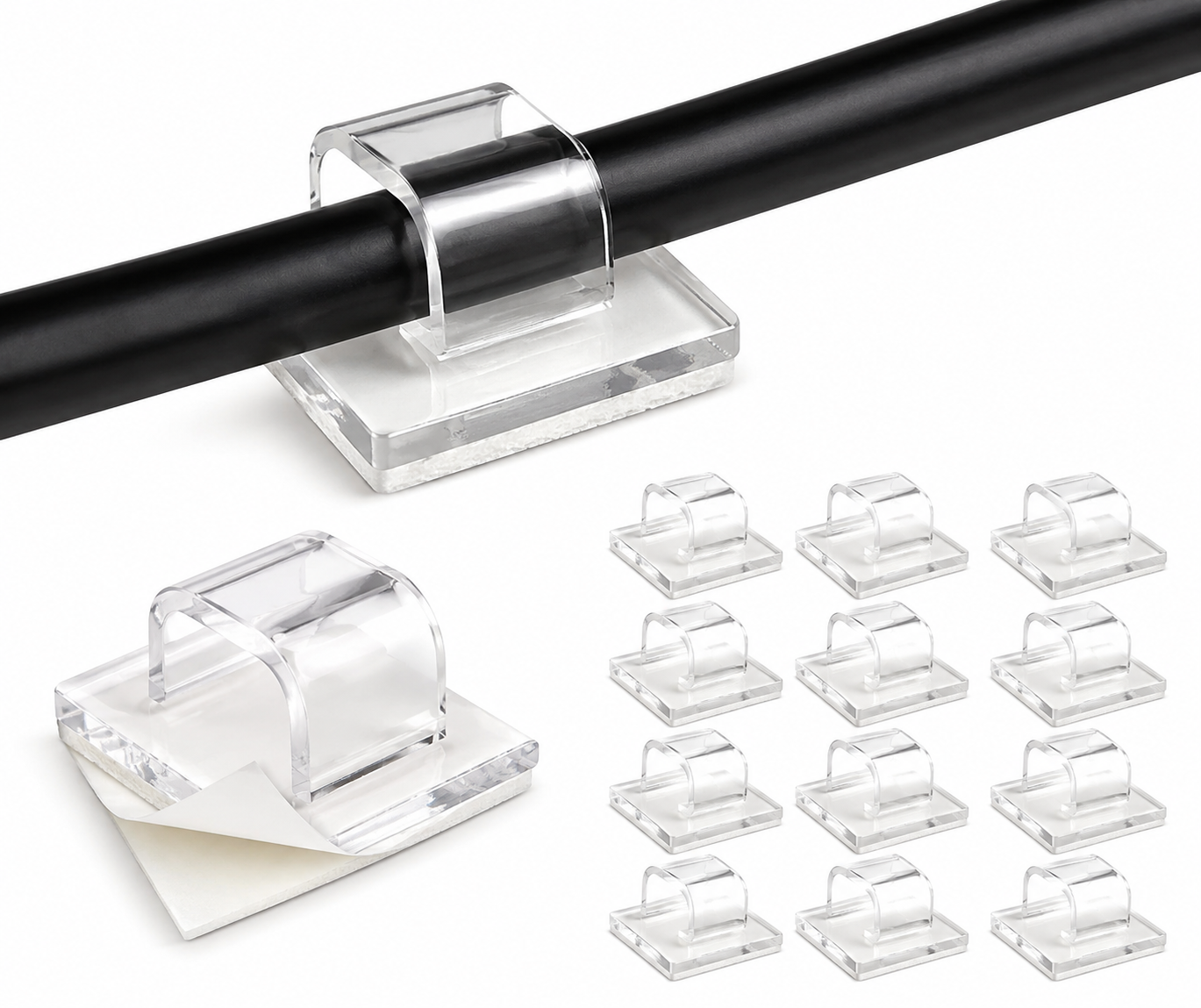
Ethernet Cable Clips
Needed when: the cable runs along a wall, desk, entertainment center, or baseboard and needs to stay neat and out of the way.
Check Cable Clips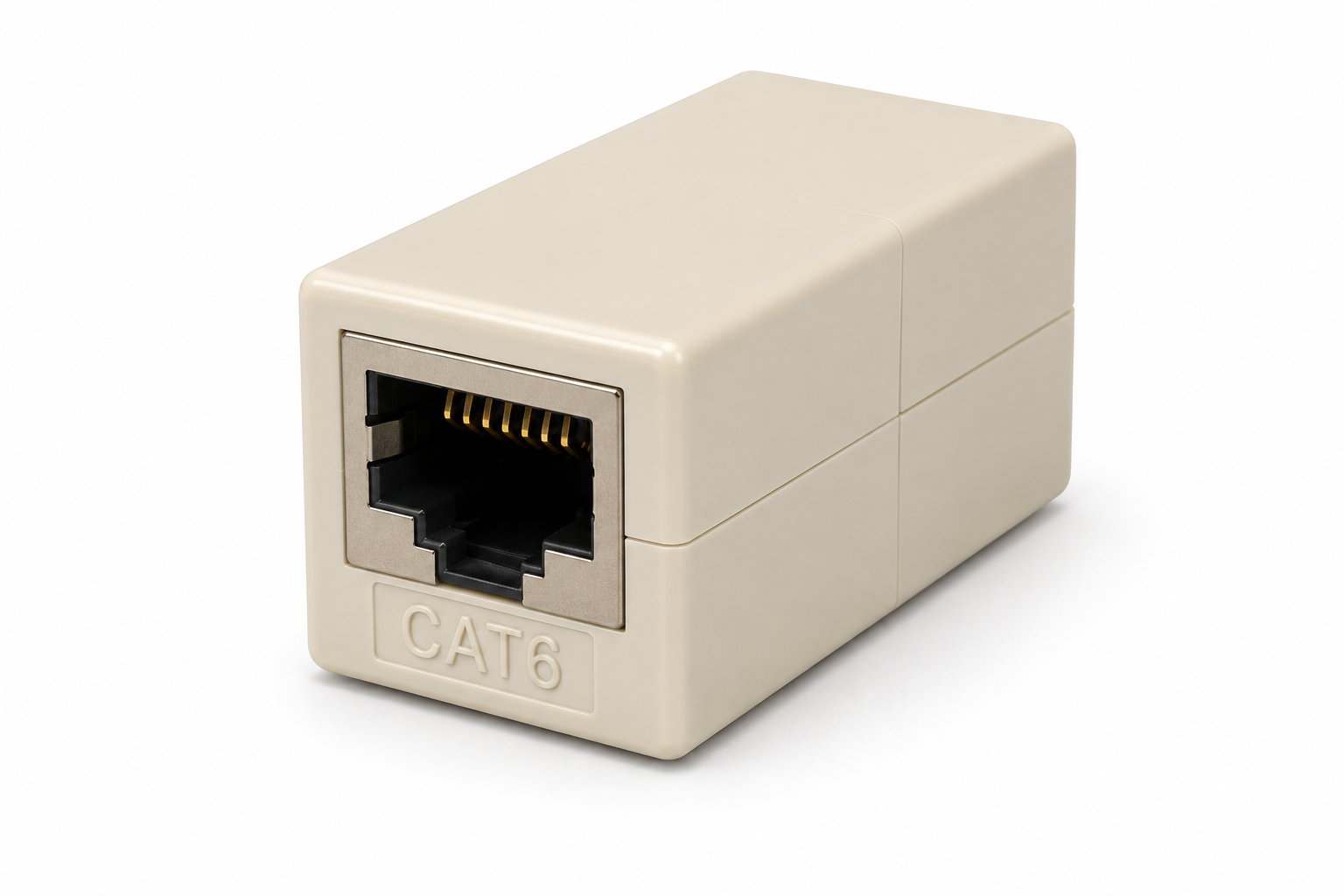
Ethernet Coupler
Needed when: you need to connect two Ethernet cables together for extra reach. Use this only when one cable is not long enough.
Check Ethernet Coupler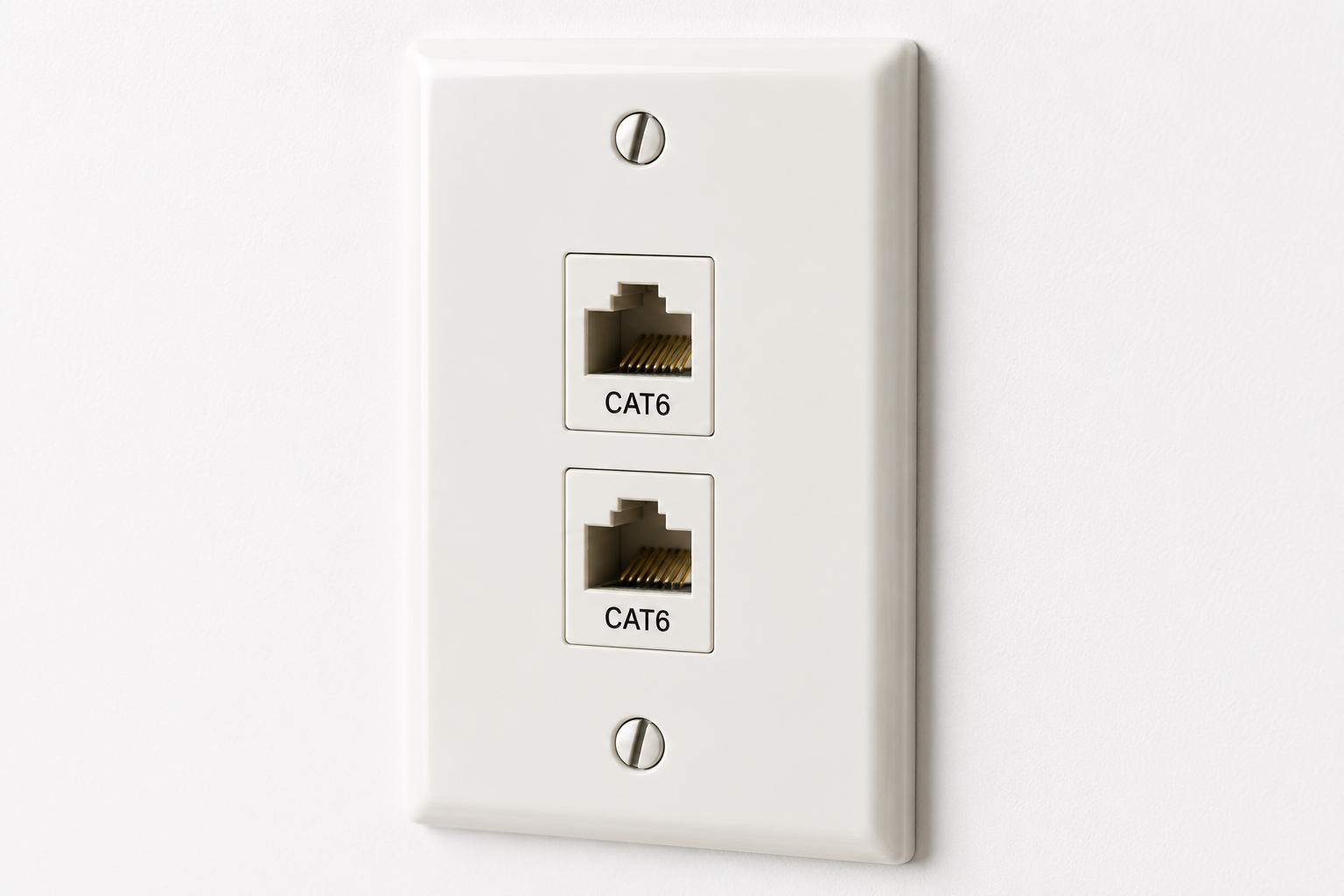
Ethernet Wall Plate
Needed when: you want a cleaner, more permanent wall connection instead of a loose cable coming through the room.
Check Wall Plate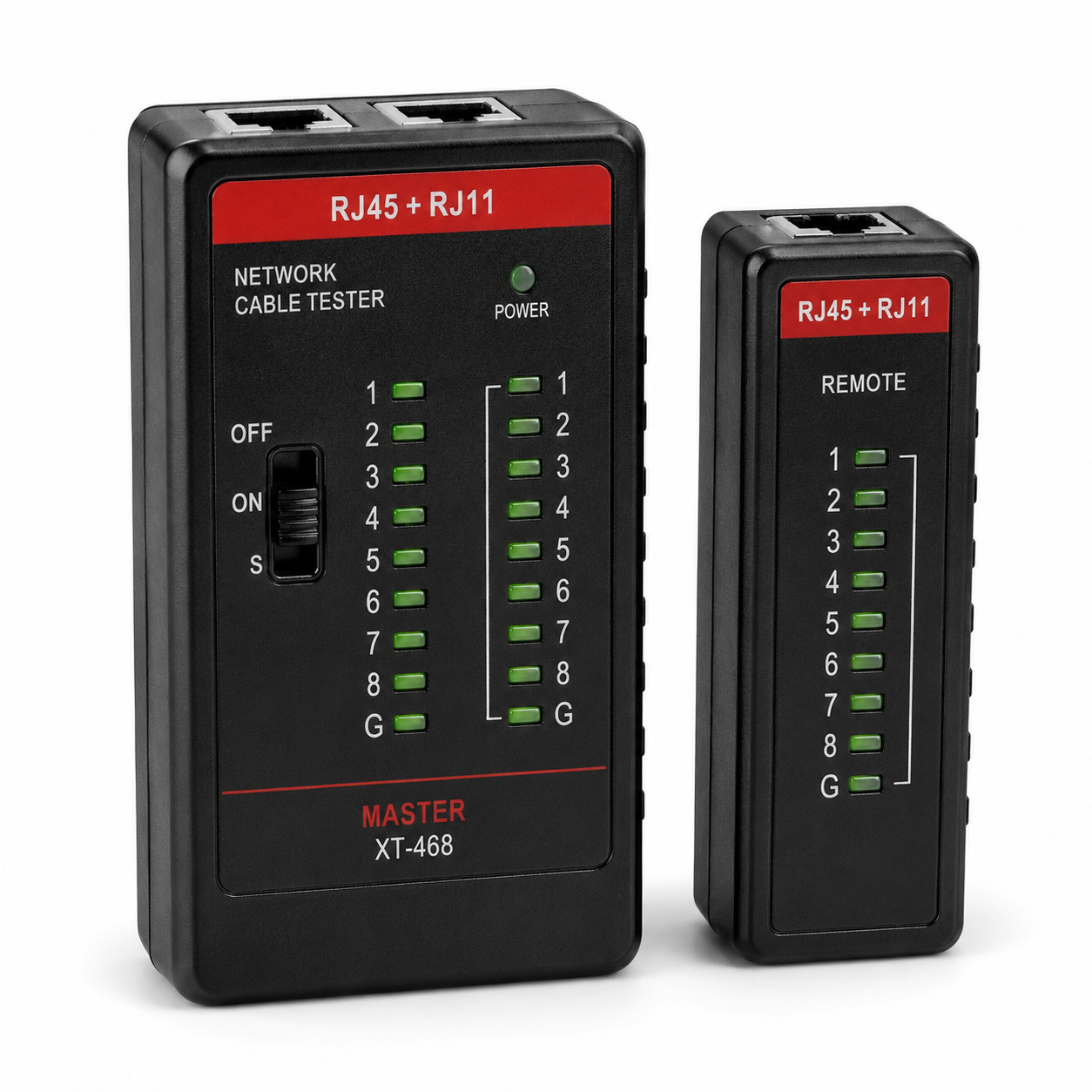
Ethernet Tester
Needed when: a cable run does not work and you need to check the cable before blaming the router, switch, or device.
Check Ethernet TesterSimple Wired Setup: One Device
Use this for one smart TV, desktop computer, game system, streaming device, or work computer.
- Plug one end of the Ethernet cable into the router.
- Plug the other end into the device.
- Restart the device.
- Check the network settings and confirm it shows a wired connection.
- If the device has no Ethernet port, use a USB Ethernet adapter.
Multiple Device Setup: TV Stand Or Office
Use this when several devices in the same area need wired internet.
- Run one Ethernet cable from the router to a network switch.
- Place the switch near the TV stand, desk, or office setup.
- Run shorter Ethernet cables from the switch to each device.
- Use this for a smart TV, streaming box, game system, desktop computer, or camera hub.
Long Run Setup: Router Far From Device
Use this when the router and device are far apart and the cable needs to run across a longer path.
- Measure the cable route before buying.
- Do not stretch the cable tight across walking areas.
- Use cable clips to keep the cable neat and safer.
- Use a coupler only if joining two cables makes more sense than replacing the whole cable.
- Use a wall plate when you want a cleaner permanent setup.
No Clean Cable Path?
Use powerline Ethernet when running a long Ethernet cable across the home is not practical.
- Plug one powerline unit near the router.
- Plug the second powerline unit near the device.
- Connect Ethernet from the router to the first unit.
- Connect Ethernet from the second unit to the device.
- Test it before moving furniture or hiding cables.
If The Wired Connection Does Not Work
Do not blame the router first. Check the cable path before replacing equipment.
- Make sure both cable ends click in firmly.
- Try a short Ethernet cable directly from the router to the device.
- If the short cable works but the long cable does not, test the long cable.
- Use an Ethernet tester before replacing the router, switch, or device.
Wired Is Best For Devices That Stay Put.
If the device sits in one place and keeps fighting WiFi, wired internet is often the cleaner fix. Start with the Ethernet cable, then add only the parts your setup actually needs.
Still Not Sure After Reading This?
Send the setup before buying. Tell Bobby where the router is, what device you want to wire, and how far apart they are.